
Dashboard Overview
Learn how to monitor your local AI infrastructure and use Quick Launch.
Opening the Dashboard
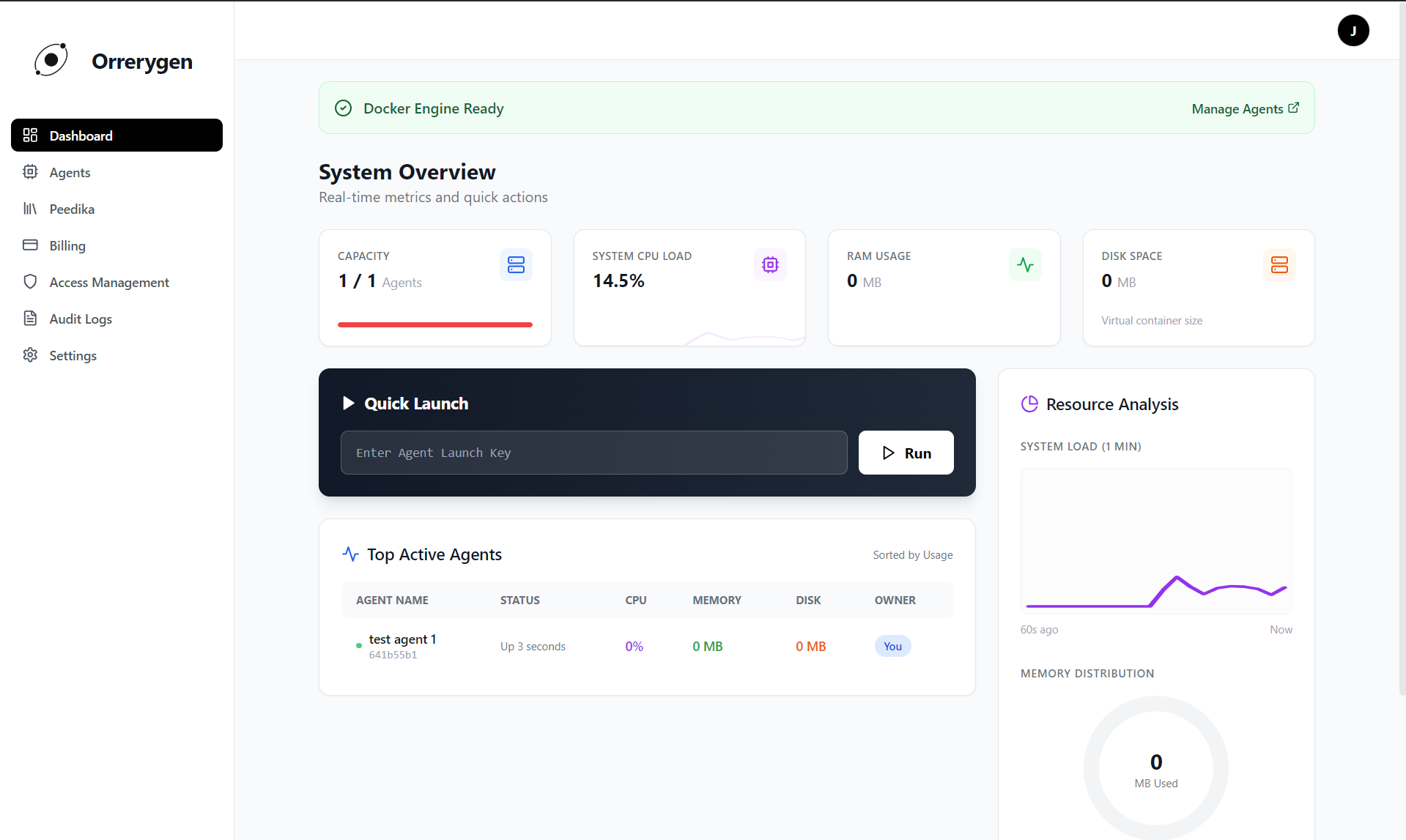
When you launch the Orrerygen Desktop application, the Dashboard is your default landing page. It provides a real-time snapshot of your local AI operations.
Understanding System Metrics
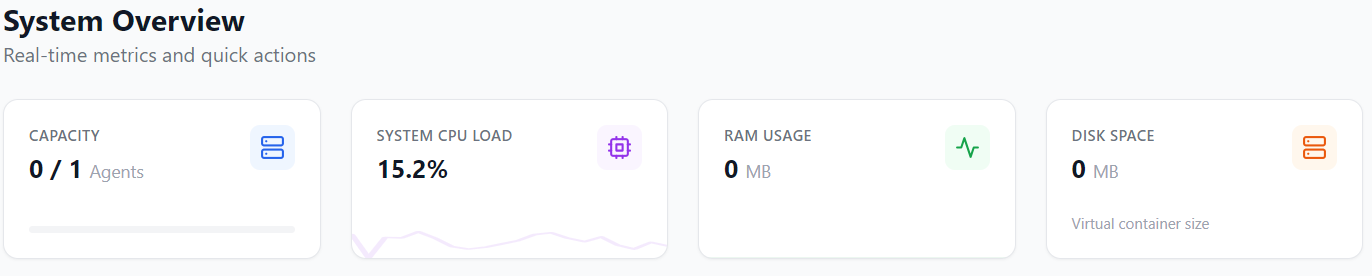
The top section displays key resource metrics:
CPU Usage
Shows the aggregate CPU consumption of all running Docker containers.
RAM & Storage
Displays memory allocation for active agents and disk space used by images/volumes.
Using Quick Launch
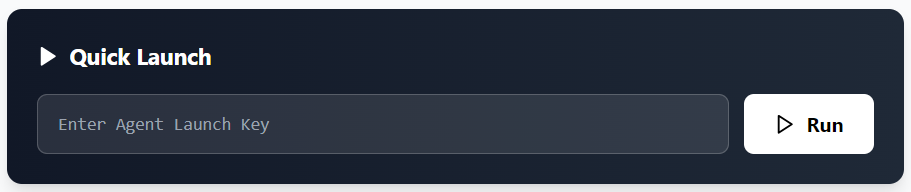
The Quick Launch panel allows you to instantly start any agent using its Launch Key (also called Agent Token). This is the fastest way to run an agent without browsing the library.
- Find the Quick Launch section with the dark background on the Dashboard.
- Enter your Agent Launch Key (a UUID or base64-encoded token) into the input field.
- Click the Run button.
- The system will pull the agent image (if not cached) and start the container. Progress logs will appear below the input field.
Tip: You can obtain Launch Keys from the Peedika Store or from shared agent links. The key format is typically a UUID like a1b2c3d4-e5f6-...
Notice
If resource metrics appear frozen or at 0%, ensure Docker Desktop (Windows) or Docker Engine (Linux) is running.